Link is copied
Next Generation Reports Configuration Examples
Customizing existing Next Generation report templates requires HTML and Angular JS knowledge. You can use code samples from the existing precofigured report templates as examples.
Below are some additional customization examples.
Remove Alarm IDs
If your Alarm report includes dense data, you can remove some technical information that crowds the page and makes it visually confusing, for example, Alarm IDs.
To remove Alarm IDs:
-
In the Template field of a report template you want to edit, locate the following code:
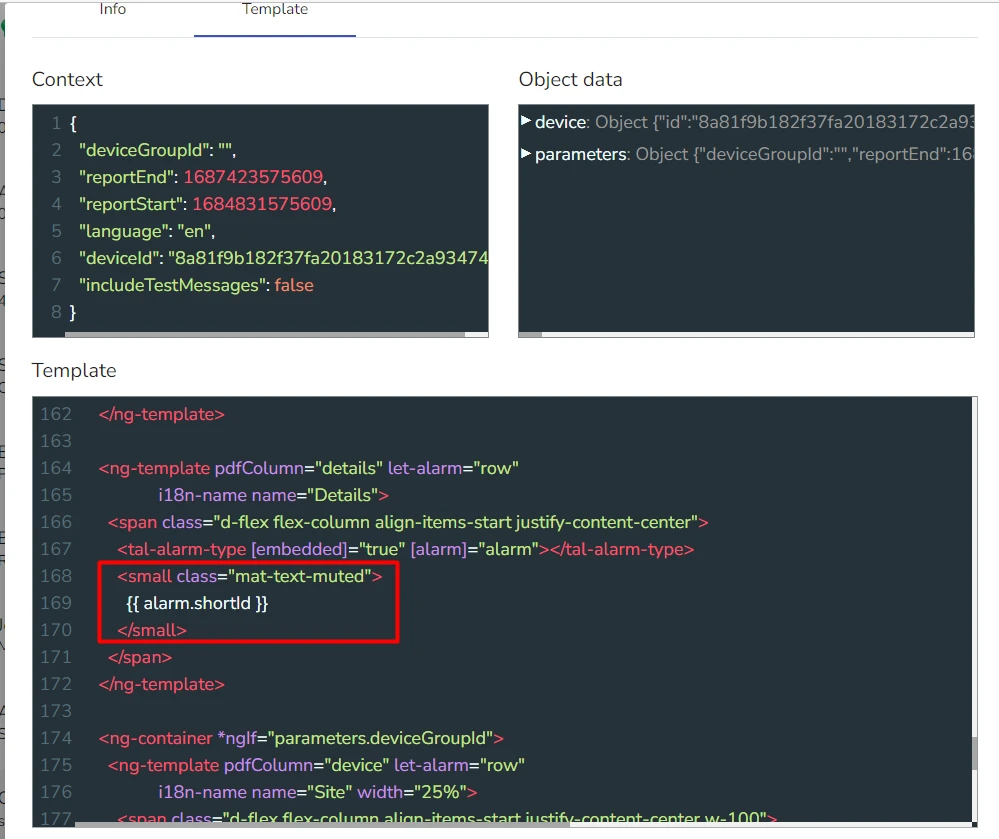
-
Delete it and save the template
Customize a Logo
Customizing branding elements, such as a logo, allows you to create similar report templates with different branding and send the same reports to different customers or contacts.
To customize a logo:
-
In the Template field of a report template you want to edit, locate the following code:
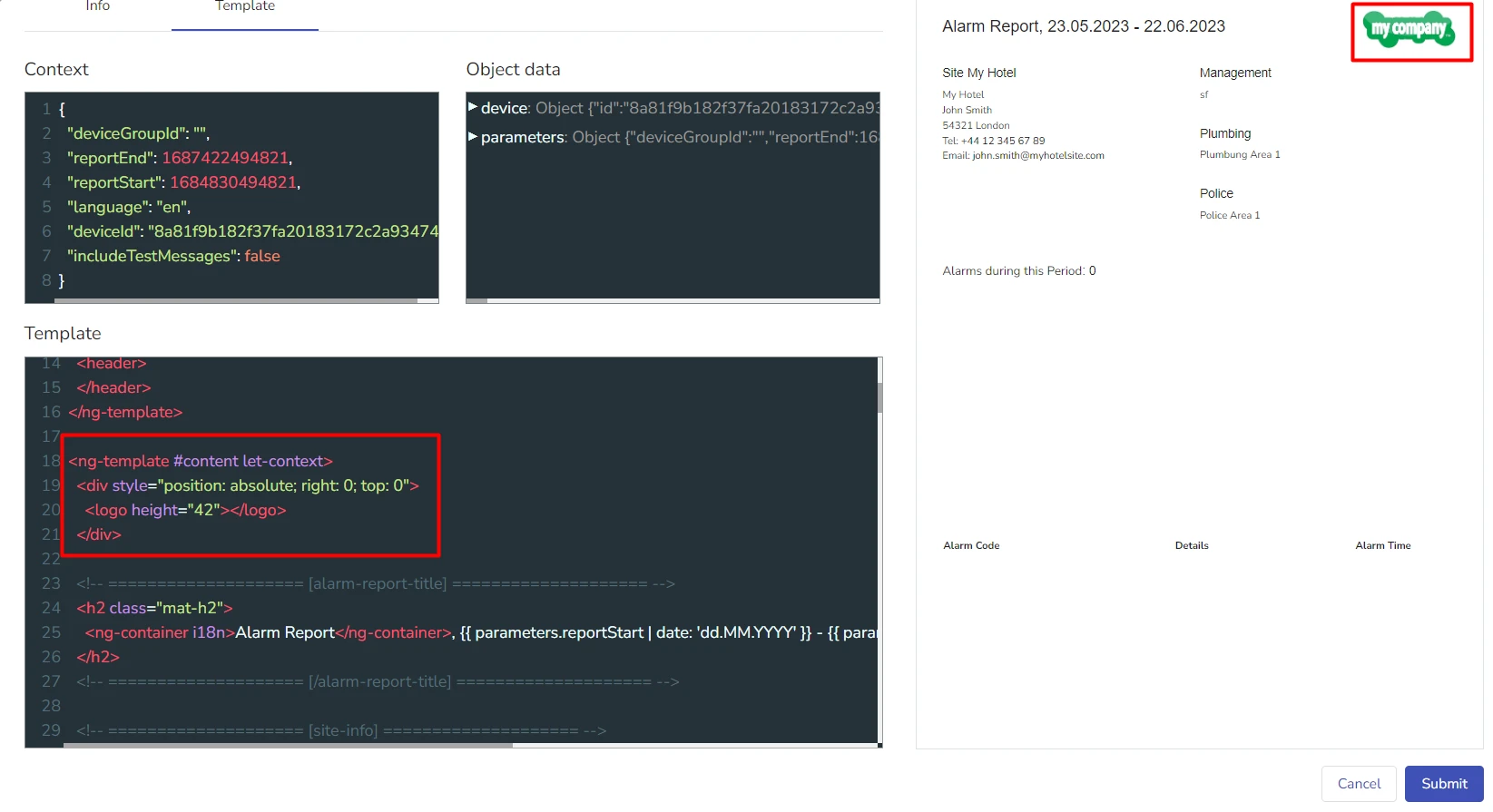
In this code snippet,
<logo height="42"></logo>determines that the logo in the report is taken from your tenant logo. -
Substitute the
<logo height="42"></logo>snippet with an HTML link to a picture you want to use as a logoFor example:
<img height="42" src="[your_link]"/> -
Adjust the image height as desired
Creating an SQL Statement for Alarms Sorted by Types
This is an example for an SQL statement which, when used in a new Data Source, returns a list of alarms counted and sorted by Alarm Type.
For example, it will show you, how many alarms of each type your selected site had during a specified period of time.
Use the following SQL statement:
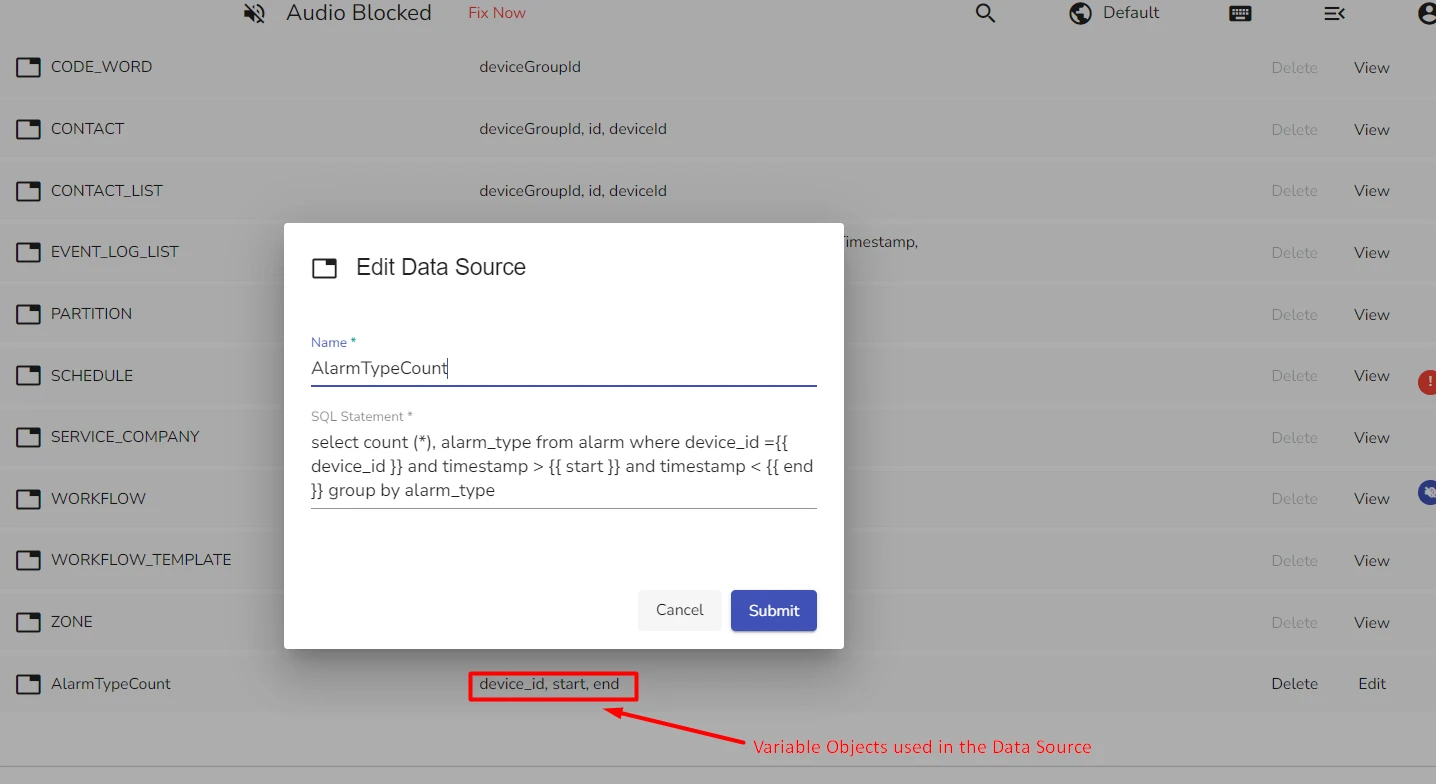
select count (*), alarm_type from alarm where device_id ={{ device_id }} and timestamp > {{ start }} and timestamp < {{ end }} group by alarm_type
The figure below shows this SQL snippet used in creating a custom Data Source:
Adding a Custom Data Source to a Report Template
If you want to add a Custom Data Source to a Report Template, you can use this basic code:
<ng-container pdfDataSource="AlarmTypeCount"
              [parameters]="{ deviceId: parameters.device_id, start:parameters.reportStart, end:parameters.reportEnd }"
              #alarmTypeDataSource="pdfDataSource">
  </ng-container>

<pre>{{ alarmTypeDataSource.data | json }} </pre>
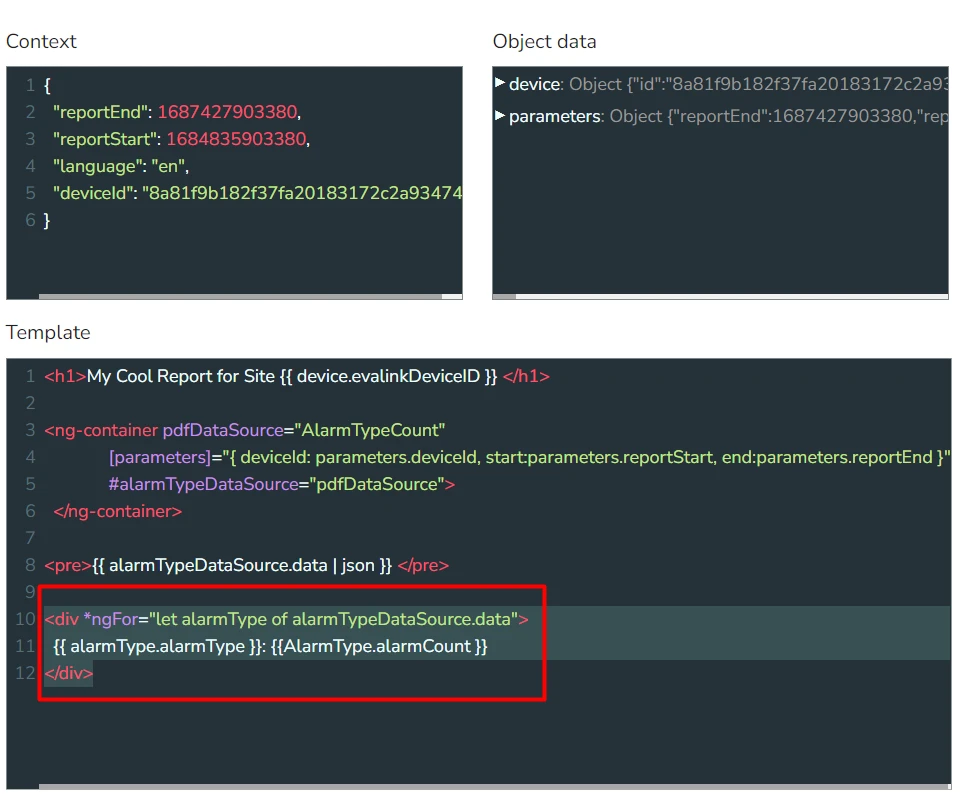
The figure below shows this code in the Template field of a report template:
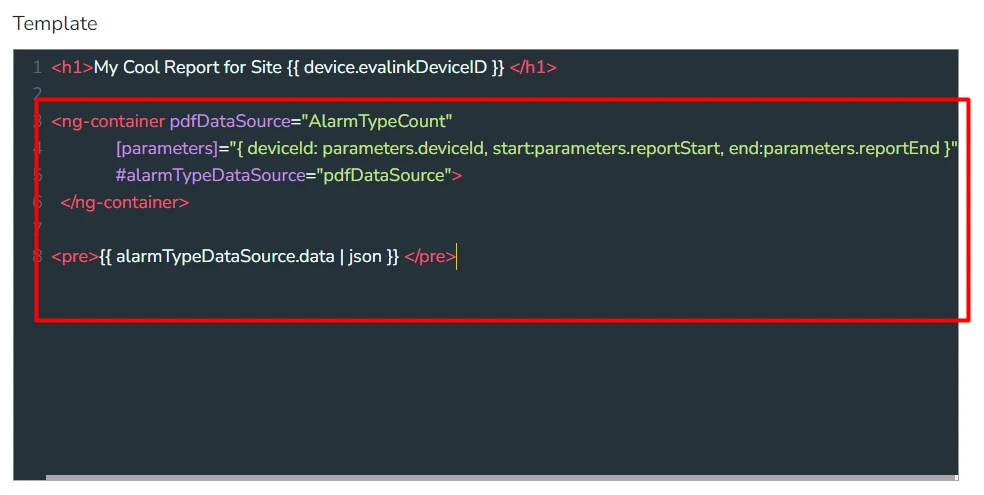
In this figure, a Data Source described in the section Creating and SQL Statement for Alarms Sorted by Types is used.
This code does not include formatting.
Organizing Data in a Table
Once you add data to your report, you can format it the way you like and use various layouts.
This example shows you how to organize the data from the Data Source added in the section Adding a Custom Data Source to a Report Template in a table.
<div *ngFor="let alarmType of alarmTypeDataSource.data">
  {{ alarmType.alarmType }}: {{alarmType.count }}
</div>
The figure below shows this code in the template field of a report template: